
Changed your broadband provider, installed a new router or updated your Wi-Fi password?
If your home battery suddenly appears offline in its app, the battery itself may be perfectly fine. In many cases, the system is simply still trying to connect using your old Wi-Fi details.
This guide explains how to reconnect GivEnergy, Sigenergy SigenStor and Tesla Powerwall systems after changing your home Wi-Fi network.
Important
This guide covers Wi-Fi and app connectivity only. You should not remove covers or interfere with electrical wiring or internal components. If your system is displaying a fault, has stopped operating, or you are unsure about any part of the process, contact your installer or the manufacturer for support.
Why Has My Battery Gone Offline After Changing My Router?
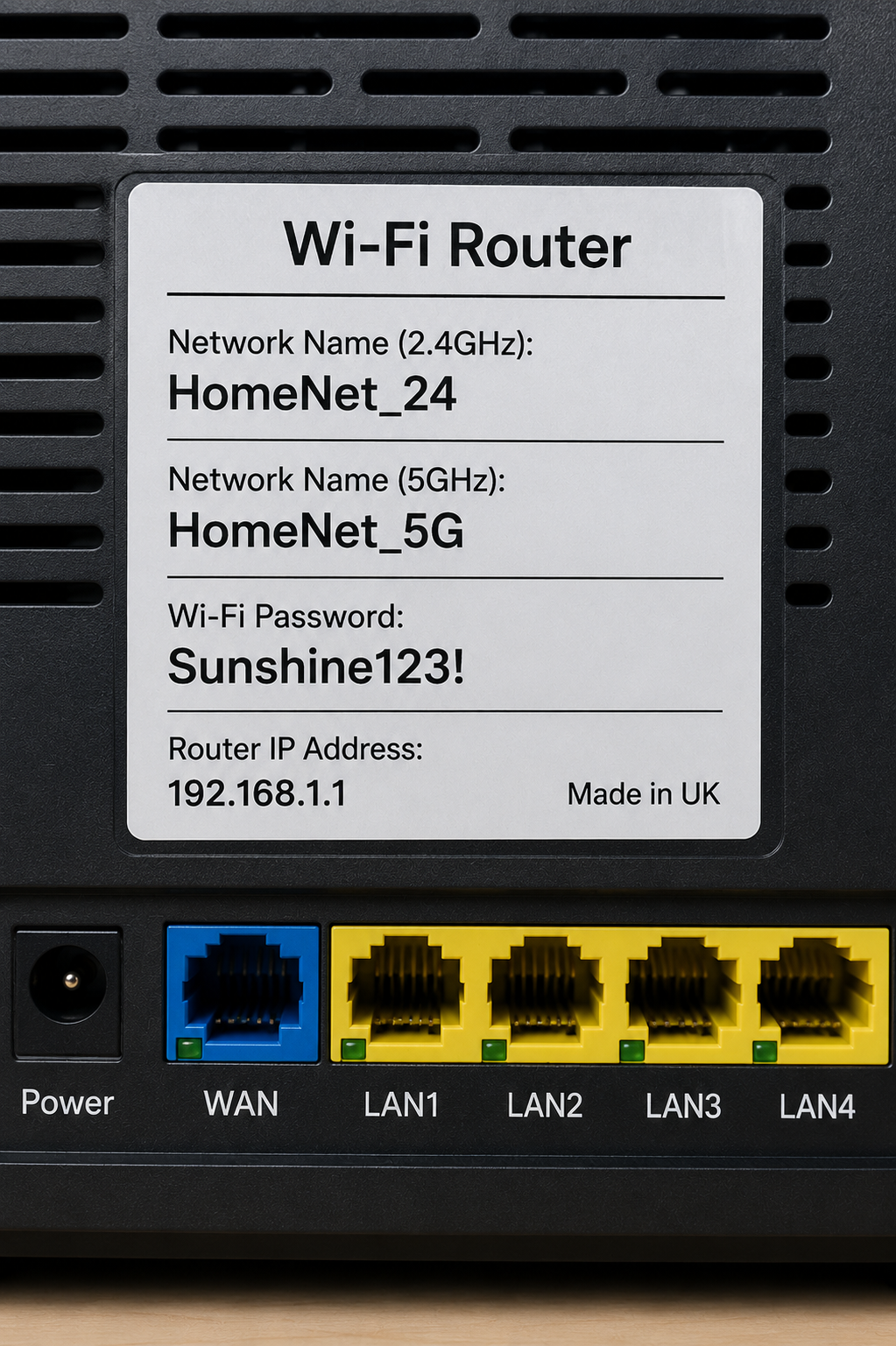
Your battery system normally stores the name and password of your home Wi-Fi network.
If you:
change broadband provider
replace your router
change your Wi-Fi network name
change your Wi-Fi password
alter your router's Wi-Fi settings
…the credentials stored by the battery system may no longer match your home network.
As a result, your battery may show as offline or stop displaying current information in its monitoring app.
This doesn't necessarily mean there is a problem with the battery itself — it may simply need your new network details.
Before You Start
Have the following ready:
Your new Wi-Fi network name (SSID)
Your new Wi-Fi password
Your phone or tablet
The relevant battery app
Access to the area where your battery/inverter is installed
It is also worth checking that your phone is connected to the correct home Wi-Fi network.
A Useful Tip Before Reconfiguring Anything
If you have simply replaced your router and you know your old Wi-Fi network name and password, you may be able to configure the new router to use exactly the same network name and password.
Devices that have stored those credentials may then reconnect automatically.
This can be particularly useful if you have numerous smart devices around the home that were connected to your previous router.
Useful Manufacturer Support Contacts
Battery hardware, apps, software and Wi-Fi connection procedures are provided and supported by the respective manufacturers and can vary by model and software version. The guidance below covers common Wi-Fi reconnection issues, but for product-specific technical support or if these steps don't match your system, please refer to the manufacturer's latest guidance or contact them directly.
GivEnergy: GivEnergy Support | 01377 252 874 | support@givenergy.co.uk
Sigenergy: Sigenergy Support | +44 204 585 0338
Tesla Powerwall: Tesla Energy Support | +44 1628 450630
How to Reconnect a GivEnergy Battery to Wi-Fi
GivEnergy systems commonly communicate with your home network through a Wi-Fi dongle connected to the inverter.
If you've changed your router or Wi-Fi details, try reconnecting through the GivEnergy app first.
Reconnect Using the GivEnergy App
Open the GivEnergy app.
Open the menu.
Select Settings.
Select Setup WiFi Dongle.
Follow the instructions displayed in the app.
Select your new home Wi-Fi network when prompted.
Enter your new Wi-Fi password.
Allow the system time to reconnect.
Important: GivEnergy and 2.4 GHz Wi-Fi
GivEnergy states that its Wi-Fi dongles support 2.4 GHz Wi-Fi.
This can become important when changing broadband provider or router.
Many modern routers provide both 2.4 GHz and 5 GHz Wi-Fi, sometimes under the same network name. If your GivEnergy system cannot see or connect to your new network, your router's Wi-Fi configuration could therefore be the problem.
GivEnergy recommends having 2.4 GHz available and, where necessary, separating the 2.4 GHz and 5 GHz networks or creating a suitable 2.4 GHz network.
If you're unsure how to do this, your broadband provider should be able to help you check your router settings.
If Your GivEnergy Battery Still Shows Offline
First check:
You have entered the Wi-Fi password correctly.
The 2.4 GHz network is enabled.
The Wi-Fi signal is strong enough at the inverter.
Your router has fully restarted.
Your phone is close to the inverter while carrying out the setup.
GivEnergy also provides a manual Wi-Fi dongle configuration method. However, if the app method doesn't work and you're uncomfortable changing network settings, we'd recommend referring to GivEnergy's current support guidance or contacting your installer rather than repeatedly resetting equipment.
How to Reconnect Sigenergy SigenStor to Wi-Fi
Sigenergy systems use the mySigen app to manage connectivity.
The correct process depends on whether your SigenStor still has another internet connection.
If Your Sigenergy System Still Has Internet Access
For example, your system may have an active Ethernet or 4G connection.
In the mySigen app:
Open your system.
Go to Settings.
Select Connectivity.
Select or change the Wi-Fi network.
Enter the details for your new home Wi-Fi.
Follow the app instructions to complete the connection.
If Your Sigenergy System Is Completely Offline
If Wi-Fi was its only internet connection:
Open the mySigen app.
Go to Settings.
Select Network Configure.
Follow the instructions shown in the app.
The app can use the SigenStor device hotspot to establish a local connection.
You may be asked to scan the QR code on the inverter.
Select your new home Wi-Fi network.
Enter your new Wi-Fi password.
Complete the configuration and allow the system time to reconnect.
If the device hotspot cannot be found or the app directs you towards restarting or isolating equipment, we recommend contacting your installer or Sigenergy support rather than carrying out electrical isolation unless you are confident and have the appropriate manufacturer's instructions.
How to Reconnect Tesla Powerwall to Wi-Fi
Tesla allows Powerwall owners to update their Wi-Fi connection through the Tesla app.
The exact process can differ slightly depending on which Powerwall and Gateway you have.
Changing Wi-Fi Through the Tesla App
For compatible Powerwall systems:
Open the Tesla app.
Select your home energy system.
Select Settings.
Select Configure Wi-Fi.
Choose your new home Wi-Fi network.
Enter the new Wi-Fi password.
Select Connect.
Allow a few minutes for the connection to complete.
If Tesla Powerwall Shows "Device Offline"
If your Powerwall is completely disconnected from the internet, Tesla provides an offline reconnection process.
For Gateway 1 and Gateway 2 systems, this involves being physically close to the system and using the Tesla app to connect locally before selecting the new home Wi-Fi network.
For Powerwall 3, the Tesla app uses a local connection process involving Bluetooth pairing.
Because the procedure varies by Powerwall generation, follow the instructions presented by the Tesla app for your particular system rather than instructions intended for a different Powerwall model.
My Battery Is Offline – Does That Mean It Has Stopped Working?
Not necessarily.
There is an important difference between:
The battery system being offline from the internet
and
The battery system itself not operating correctly.
Losing your Wi-Fi connection can prevent the manufacturer's app or cloud platform from receiving current information from the system.
That doesn't automatically mean your battery has stopped charging or discharging.
For example, Tesla states that a Powerwall which loses its internet connection can continue operating using its most recent settings, although monitoring and some functionality that relies on connectivity will be affected.
If you're unsure, check whether the battery/inverter itself is showing any warnings or fault indicators.
Battery Connected to Wi-Fi but the App Still Shows Offline?
Give the system some time to reconnect to the manufacturer's servers.
You can also check:
Is your home internet working normally?
Is the battery connected to the correct Wi-Fi?
Is the Wi-Fi signal strong enough where the inverter/battery is installed?
Have you entered the correct password?
Has the manufacturer's app been updated?
Does closing and reopening the app refresh the status?
Some systems may take several minutes to begin displaying current information again.
Tesla advises that if Powerwall data has not started reporting within 24 hours after successfully reconnecting to Wi-Fi, customers should contact Tesla support.
Wi-Fi Signal Too Weak at Your Battery or Inverter?
Battery and inverter systems are often installed in garages, utility rooms, loft spaces or on external walls — locations where your home Wi-Fi signal may be weaker.
A new router can also have different Wi-Fi coverage from your previous one.
If your battery repeatedly loses its connection, check the Wi-Fi signal around the inverter.
Depending on your system and home network, possible solutions can include:
repositioning your router
using a Wi-Fi extender
installing a mesh Wi-Fi system
using a suitable 2.4 GHz network where required
using Ethernet where supported and practical
The appropriate solution will depend on your battery system and home network.
Frequently Asked Questions
Why did my battery go offline when I changed broadband provider?
Your battery or inverter may have stored the Wi-Fi name and password from your previous router. When the router changes, the system can no longer connect using those credentials and may need to be given your new Wi-Fi details.
Do I need an electrician to reconnect my battery to Wi-Fi?
Usually not. GivEnergy, Sigenergy and Tesla provide methods for customers to update network settings through their apps or local Wi-Fi configuration. If troubleshooting requires opening electrical equipment, altering wiring or carrying out an electrical isolation procedure you're not comfortable with, contact your installer.
Will my battery stop working if the Wi-Fi goes down?
Not necessarily. An internet connection is primarily needed for functions such as remote monitoring, cloud communication and some updates and services. Whether all other functions remain available depends on the battery system and its configuration.
Why can't my GivEnergy battery connect to my new router?
One common reason is the Wi-Fi frequency. GivEnergy Wi-Fi dongles use 2.4 GHz Wi-Fi. Check that 2.4 GHz is enabled on your router and that the signal reaching the inverter is strong enough.
How do I change the Wi-Fi on a GivEnergy battery?
Open the GivEnergy app and go to Settings > Setup WiFi Dongle, then follow the on-screen instructions to connect the system to your new Wi-Fi network.
How do I change the Wi-Fi on Sigenergy SigenStor?
If the system has an alternative internet connection, Wi-Fi can be changed through mySigen > Settings > Connectivity. If the system has lost its network connection, use Settings > Network Configure and follow the app's local connection instructions.
How do I change the Wi-Fi on Tesla Powerwall?
Open the Tesla app, select your energy system and go to Settings > Configure Wi-Fi. If the Powerwall is completely offline, follow the local reconnection instructions presented in the Tesla app for your particular Powerwall or Gateway.
Can I give my new router the same Wi-Fi name and password as my old router?
Often, yes. Devices that have saved your previous Wi-Fi credentials may reconnect automatically if the new router uses exactly the same network name, password and compatible security settings. However, compatibility can vary between devices and routers.
What should I do if my battery still won't reconnect?
Check your Wi-Fi password, signal strength and router settings first. If the system remains offline, consult the manufacturer's current support information or contact your installer.